HTTPS was steadily becoming the expected foundation of a trustworthy website. It had long protected online banking and payment systems, and site owners were beginning to adopt it everywhere else. The essential requirement was a certificate that modern browsers could validate without warning users away.
Obtaining such a certificate was often expensive and unnecessarily difficult. Applicants had to verify an identity or company, prove control of the domain, and pay a certificate authority. That left a practical question: how could a small project offer encrypted access without a separate certificate budget?
StartSSL offered a one-year certificate for one domain and one subdomain, but its terms included non-commercial use and a fee for revocation. WoSign then introduced a free certificate covering a domain and up to one hundred subdomains. The offer was unusually generous, so this guide walks through the original enrollment process in detail.
Begin by creating an account at https://login.wosign.com/reg.html.
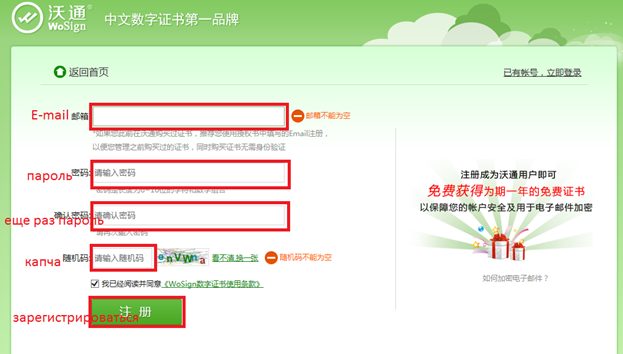
The password must contain between six and sixteen characters and include at least one digit.
After submitting the form, follow the confirmation link sent by email. WoSign also sends a client certificate that can be used for authentication, although signing in with the account name and password is sufficient. Continue at https://login.wosign.com/login.html.
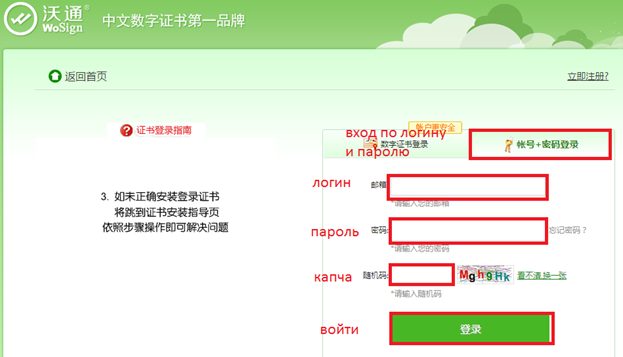
Once signed in, open https://buy.wosign.com/free/ to begin the free certificate request.
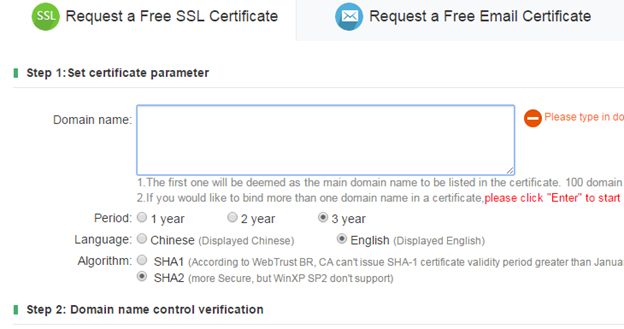
The request form is available in English. Enter every required subdomain on its own line. There is no need to add www.domain.com because it is included automatically; instead, reserve names such as mail, ftp, and admin if the services may be needed later. Choose the certificate period, select English as the certificate language, and use SHA2.
The next step verifies control of the domain by sending a message to one of its standard administrative addresses.

Select Validate now to open the verification form.
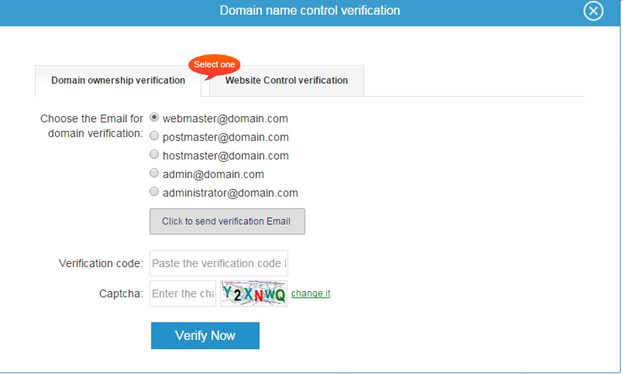
Choose an address and request the validation code. Enter the code from the email in the Verification code field, complete the CAPTCHA, and confirm ownership of the domain.
The certificate authority now needs a private key and a certificate signing request.
Generate the private key:
openssl genrsa -des3 -out domain.com.private.pem 4096Keep the passphrase safe, then create the CSR:
openssl req -new -sha256 -key domain.com.private.pem -out domain.com.csrAnswer the prompts carefully. When OpenSSL asks for “Common Name (e.g. server FQDN or YOUR name),” enter the domain name the certificate will protect.
Open domain.com.csr in a text editor and copy its complete contents.
Return to WoSign and paste the request into the form shown at the next step.
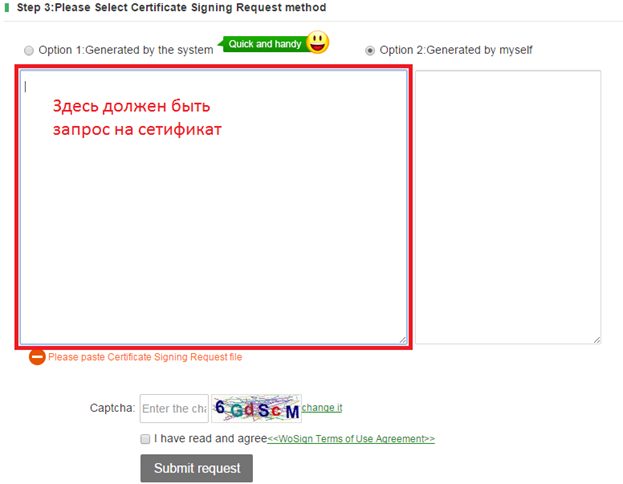
Complete the CAPTCHA, accept the service terms, and submit the request. Within roughly twelve hours, the service should send an archive containing certificate bundles prepared for several web servers. Installing those files on the server is the final step and deserves its own guide.
After installation, browsers can recognize the site as trusted and protect traffic with HTTPS. One practical drawback of the service at the time was that its certificate infrastructure was based in China, where network filtering and latency could occasionally slow validation.
If this guide was useful, share it with colleagues and send any corrections or questions.
Reproducing this material on another website without the author’s permission is prohibited.